
Coming soon to Windows
Free video editor, no watermark. Pro, paid once.
For YouTube, Shorts, Reels and TikTok. Edit and export up to 1080p for free; Pro adds 4K and the tools that do the work for you.
Editing
Everything you do by hand is free.
Cut on the timeline, write titles, color each shot with wheels, curves and LUTs, animate with keyframes and put videos side by side or one over another, on as many tracks as you need.
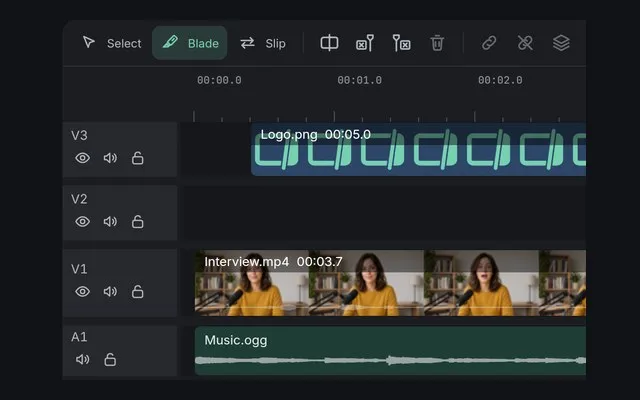
Cut and trim
Split, trim and close the gaps, the rest moving along.

Add text and titles
Titles and lower thirds, typed on the viewer, with letters that move.
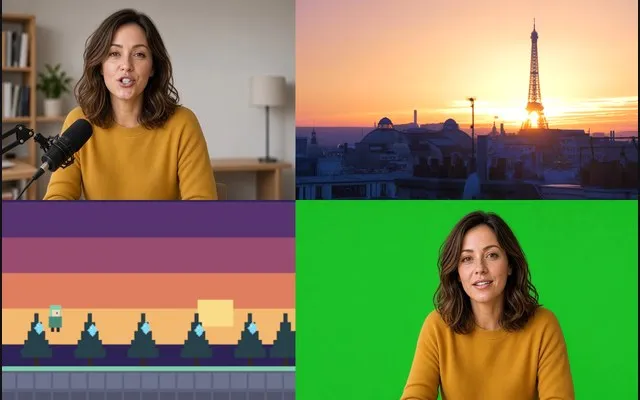
Split screen
Two to nine videos side by side, stacked or in a grid.
No credits, nothing to top up
Captions, pauses and reframing, done by your computer.
The AI runs on your computer: no usage limits, and your videos are never uploaded. Try every tool free on your own videos, as often as you like; exporting what they make needs Pro, paid once.
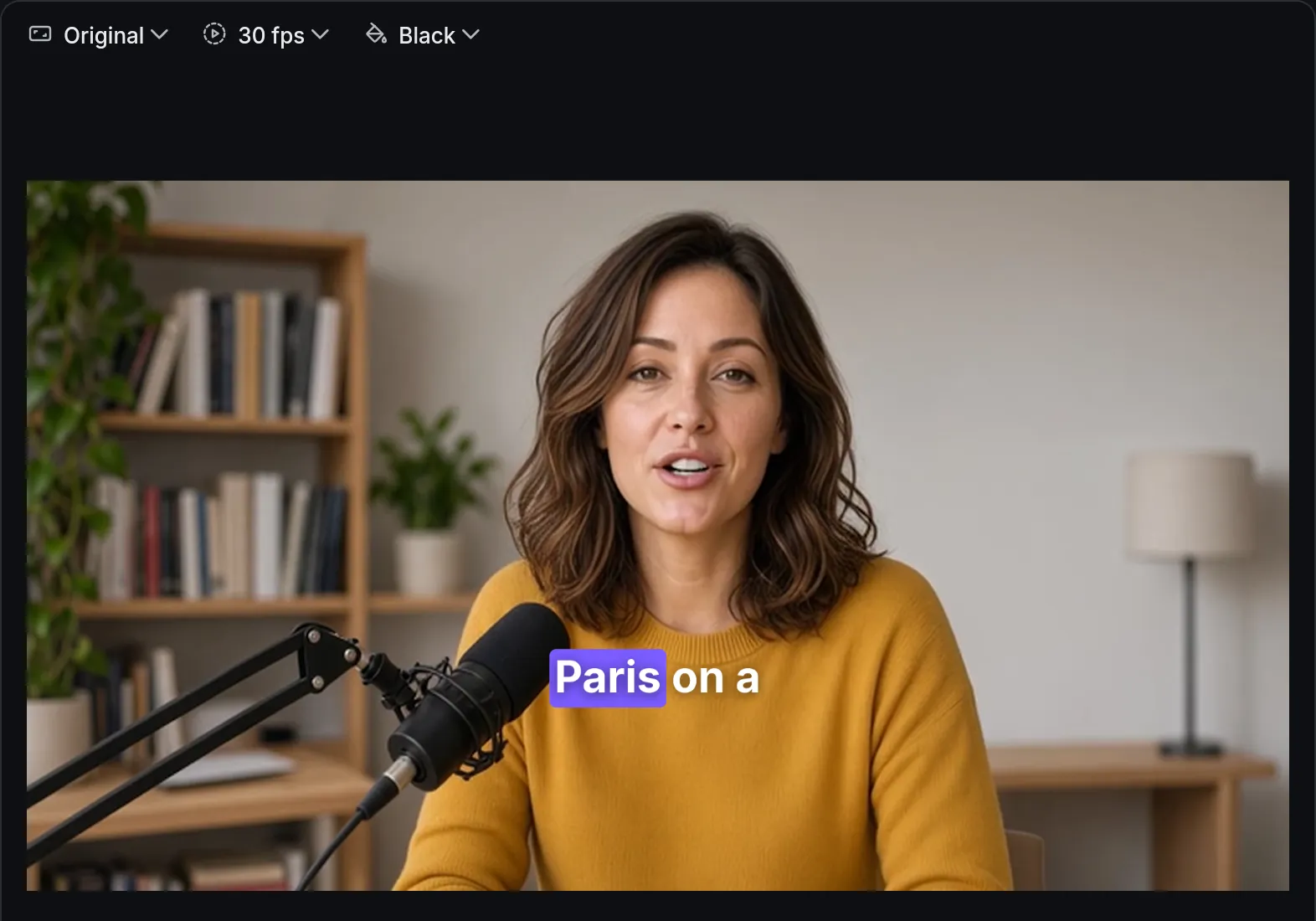
Auto captionsPro
Speech turned into captions you can edit, each word highlighted as it’s spoken.
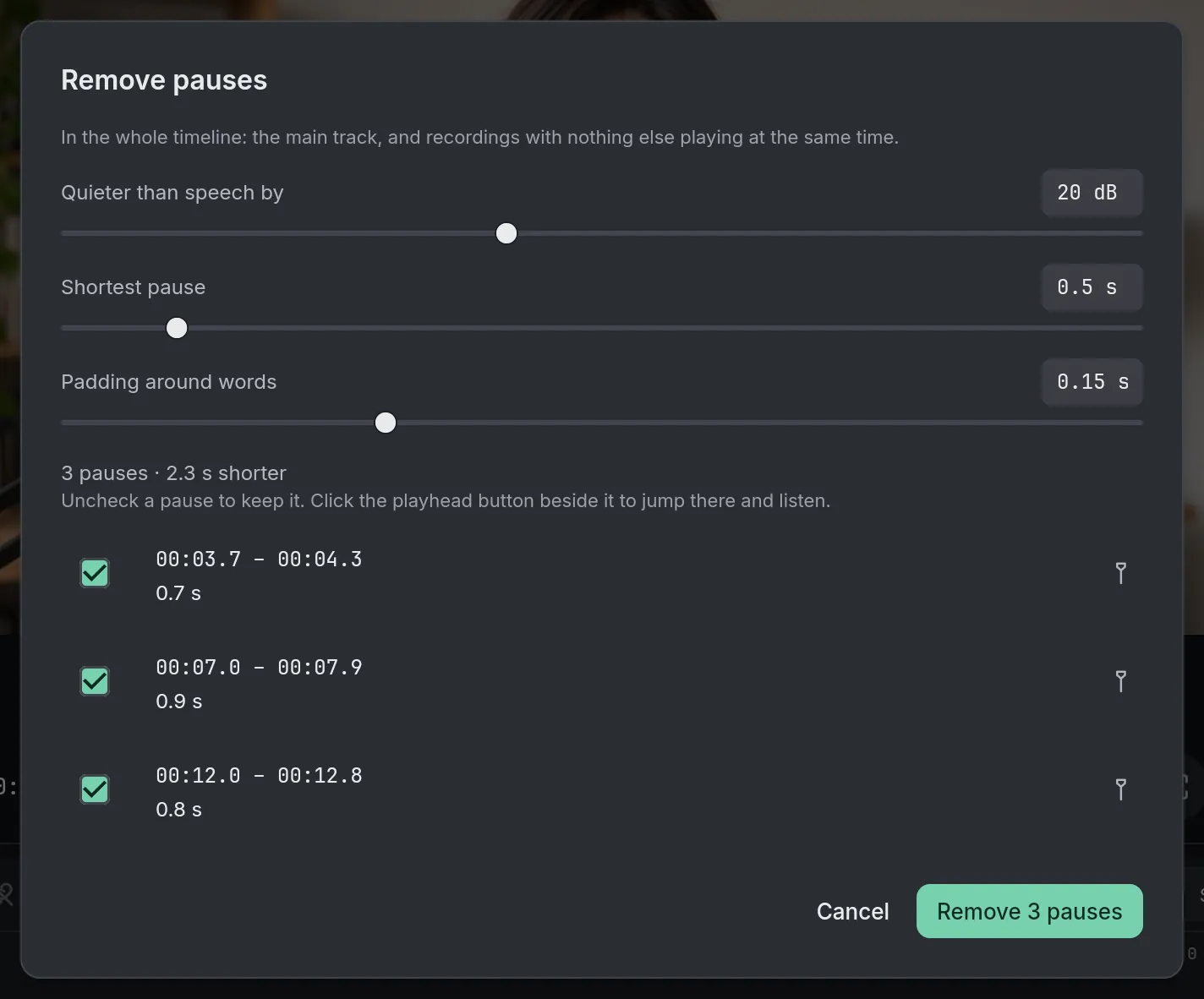
Remove pausesPro
Find the pauses in a recording and take them out in one step.
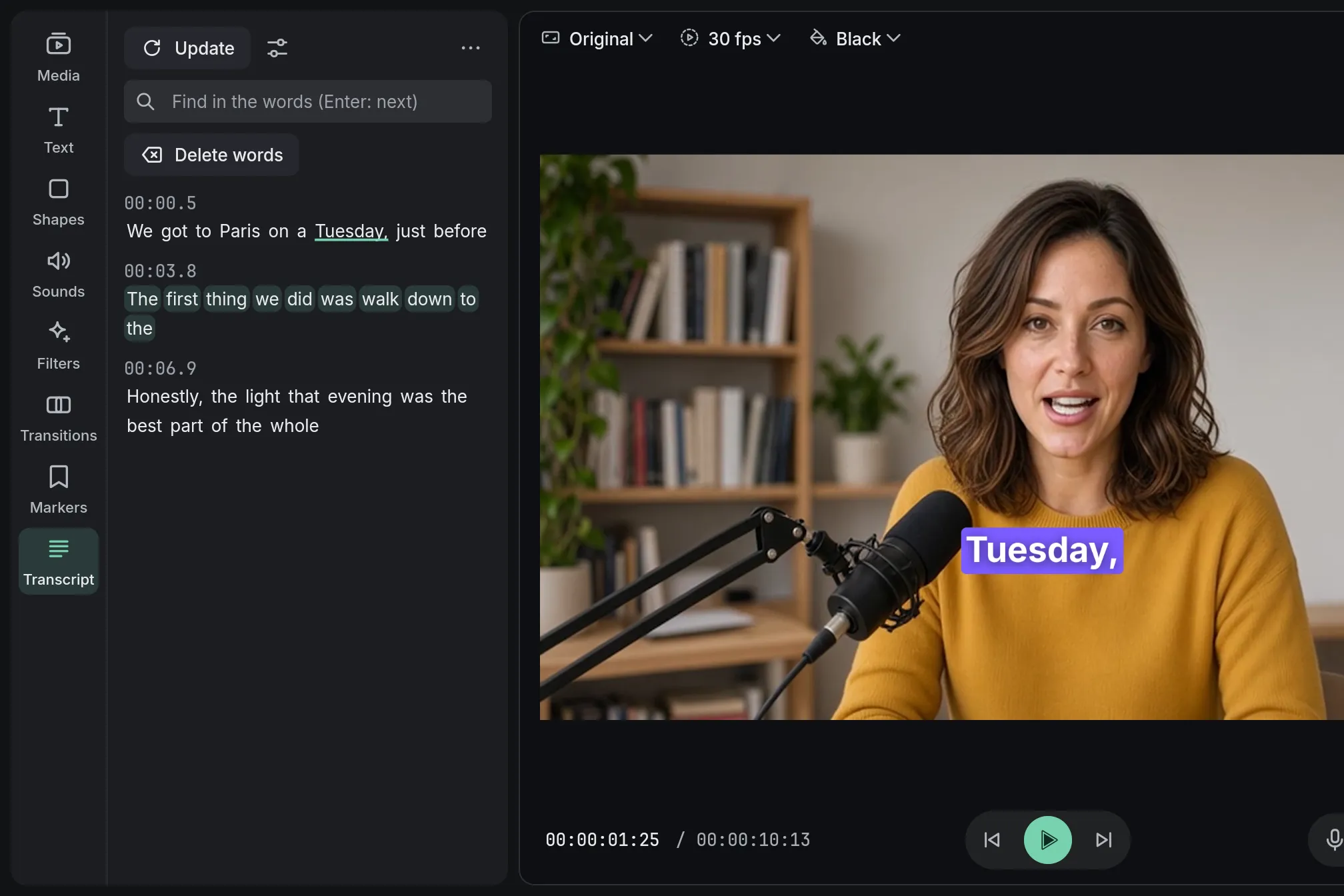
Edit by textPro
Delete a sentence from the transcript and it leaves the video.
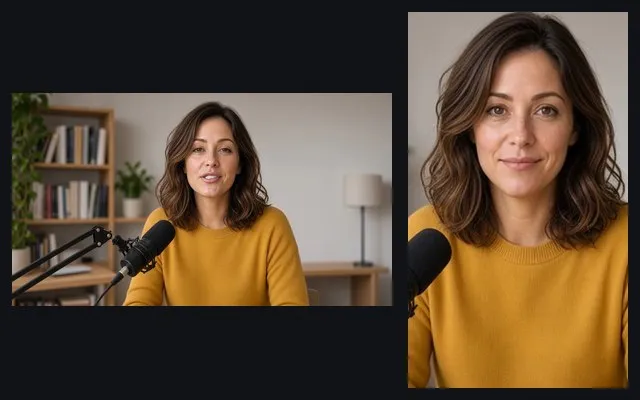
Vertical videoPro
A 9:16 version of a landscape edit, the faces kept in frame.
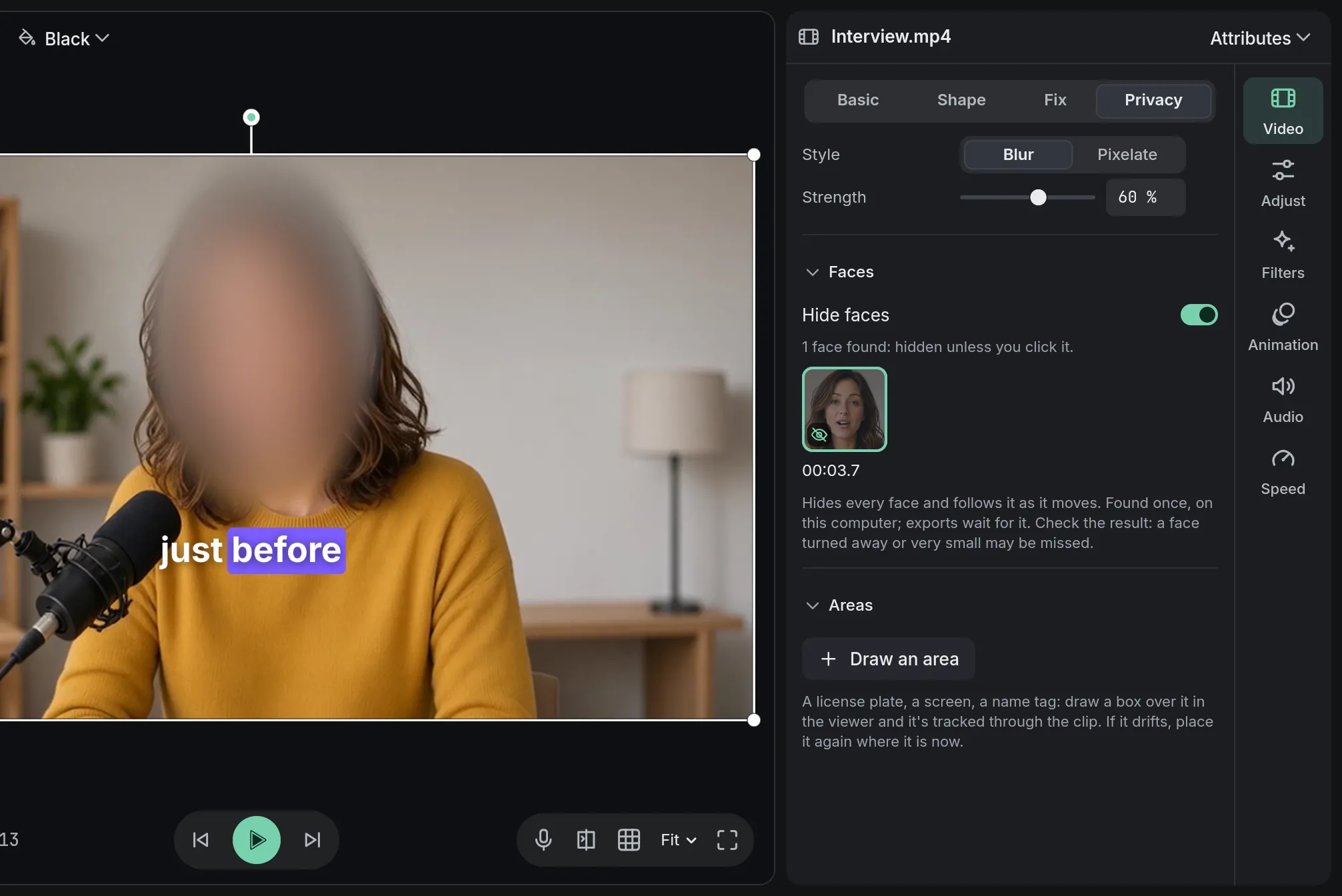
Hide facesPro
Every face blurred and followed; click one to leave it visible.

Remove backgroundPro
Keep the person, lose the room: no green screen needed.
Make it look good
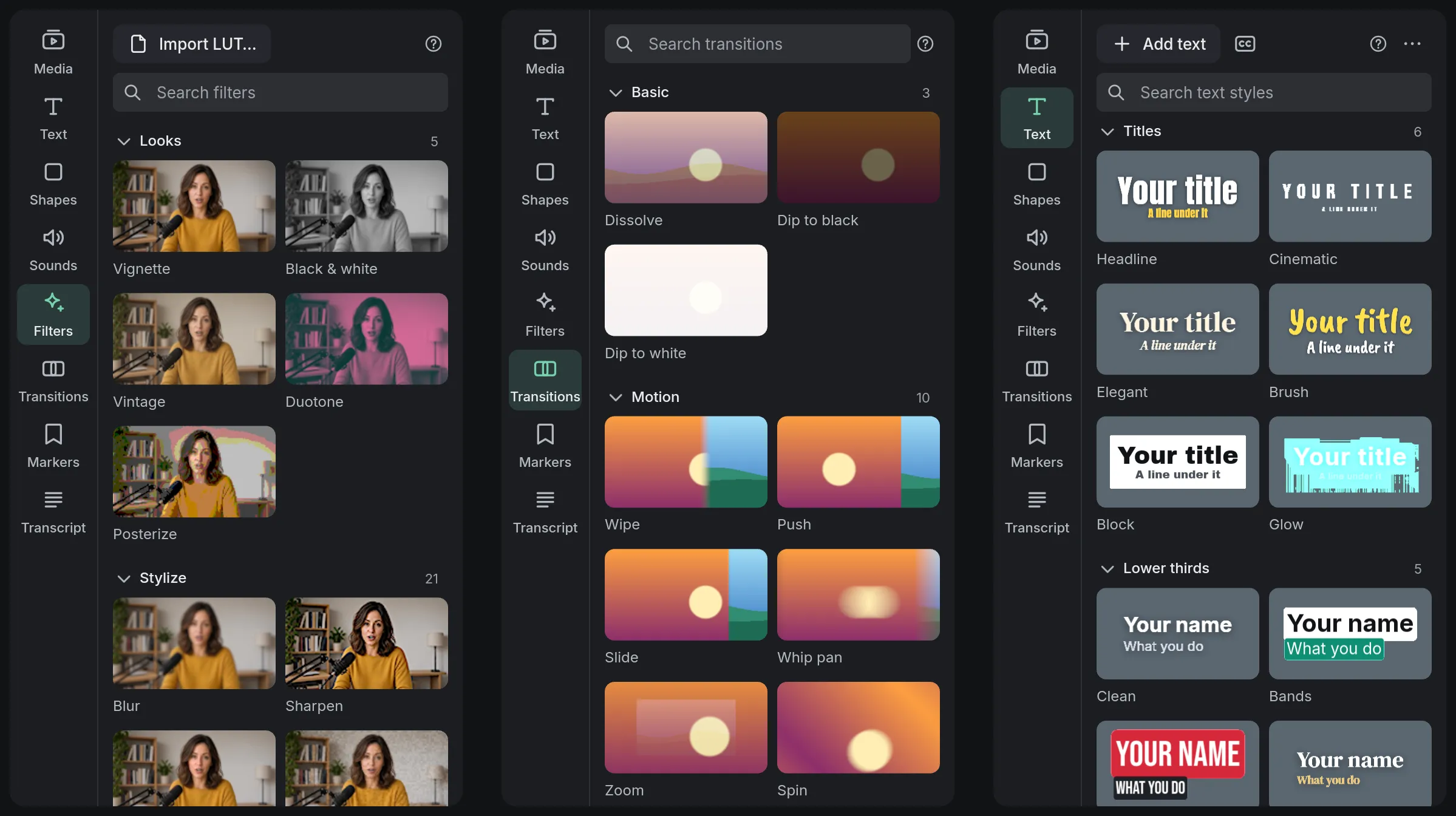
Filters, transitions and titles.
Each filter’s tile is your own clip, so you see it before you add it, and transitions play in the gallery. A selection is free; Pro adds the rest.
Who it’s for
For the videos you make.
What Eigami does for each kind of video, from the raw recording to the export.
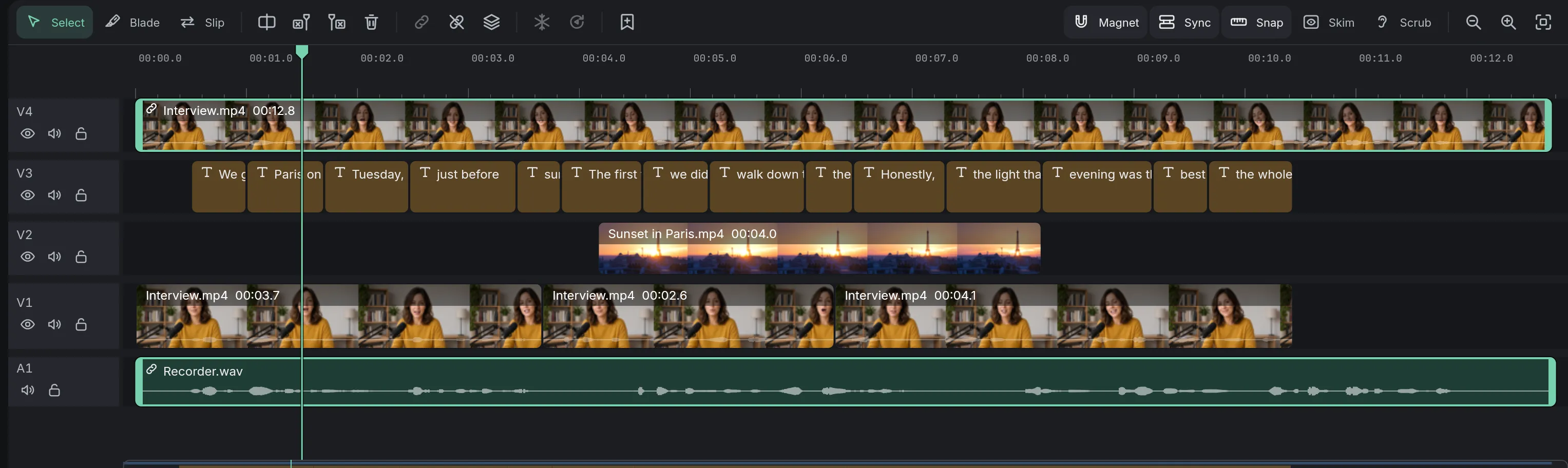
Podcasts
A recorded conversation made into an episode: microphones synced by sound, voices cleaned, vertical clips captioned.
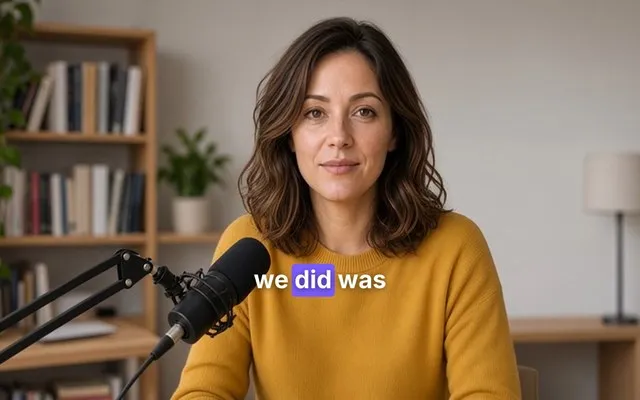
YouTube
A long take made tight: pauses taken out, retakes deleted from the transcript, captions from what you say.
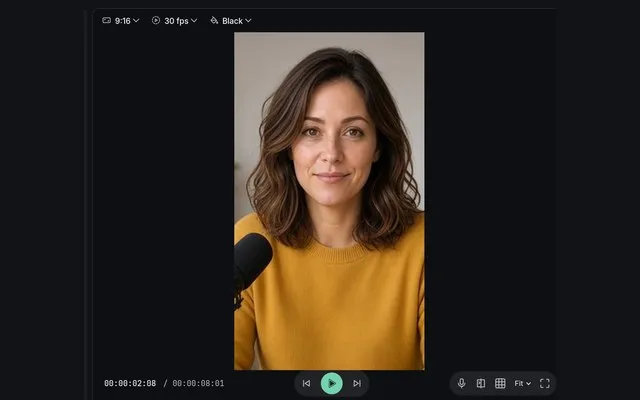
Short videos
Vertical videos with captions a few words at a time, and landscape edits turned 9:16 with the faces in frame.
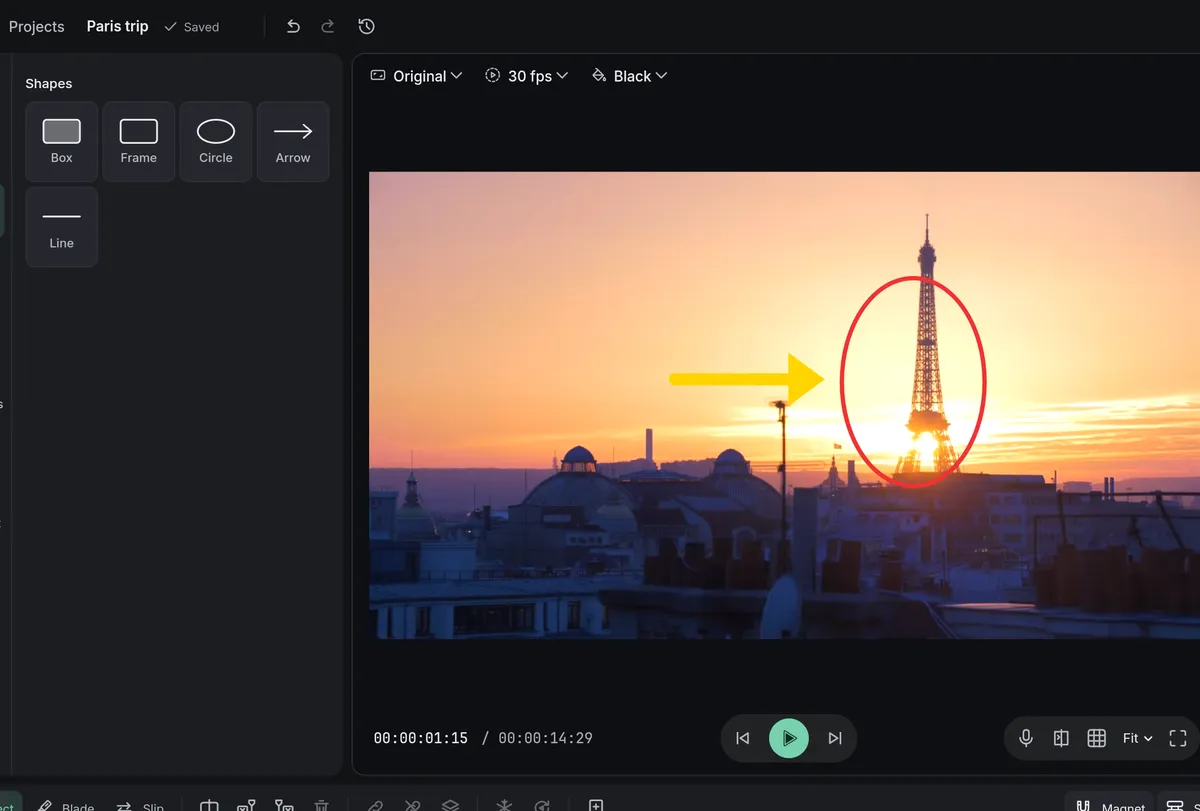
Tutorials and courses
Arrows and circles where to look, a zoom onto the detail, captions, and a voice that reads your script.
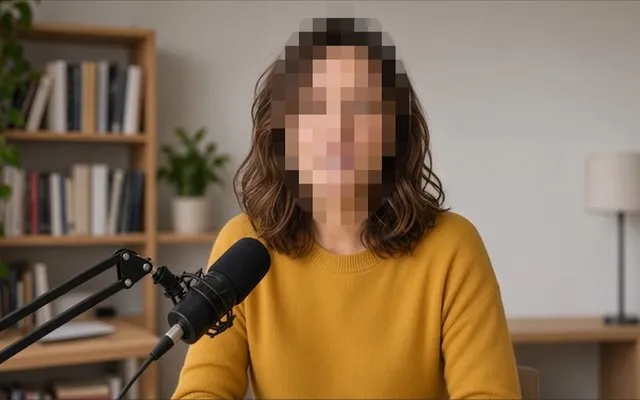
Private work
Client, company and school videos edited, captioned and with faces hidden, all on your computer.

Retro gaming
Game captures on CRT, arcade and handheld screens, with crisp pixels and the console’s lines.
Good to know
What it needs and what it doesn’t do.
Before you start: what your computer needs, and what Eigami leaves out.
Requirements
Windows 10 (version 1903 or later) or Windows 11. A DirectX 12 graphics card is recommended.
What it doesn’t do
Eigami has no phone app, no shared projects and no stock library of music, clips or templates, and it doesn’t generate images or videos.
Questions
What people ask.
Is it free?
Yes, up to 1080p, forever, with no watermark. Pro, $39 USD paid once, adds the tools that do the work for you, exports above 1080p and more filters and transitions. What is free and what is Pro
Is there a watermark on exports?
No. What you export carries nothing of ours.
Do I need an account?
Not for Eigami: the app never asks you to sign in.
Are my videos uploaded?
No. Every AI tool runs on your computer; the only thing the app downloads is an AI model, the first time a tool needs one.
Does it work offline?
Yes. Some AI tools download what they need the first time you use them; after that, they work without a connection too.
Which files does it open?
The usual videos (MP4, MOV, MKV, WEBM and more), sound (MP3, WAV, M4A, FLAC and more), pictures (JPG, PNG, WEBP, GIF and more) and SRT captions. The specifications list them all.
Coming soon to Windows.
Free, with Pro paid once, through the Microsoft Store for Windows 10 and 11.